Learn how to search products, select countries, retrieve import or export data, review shipment records, and explore detailed trade intelligence using CBS Trade Data.
STEP 01
Open CBS TRADE DATA Dashboard
Go on One Search
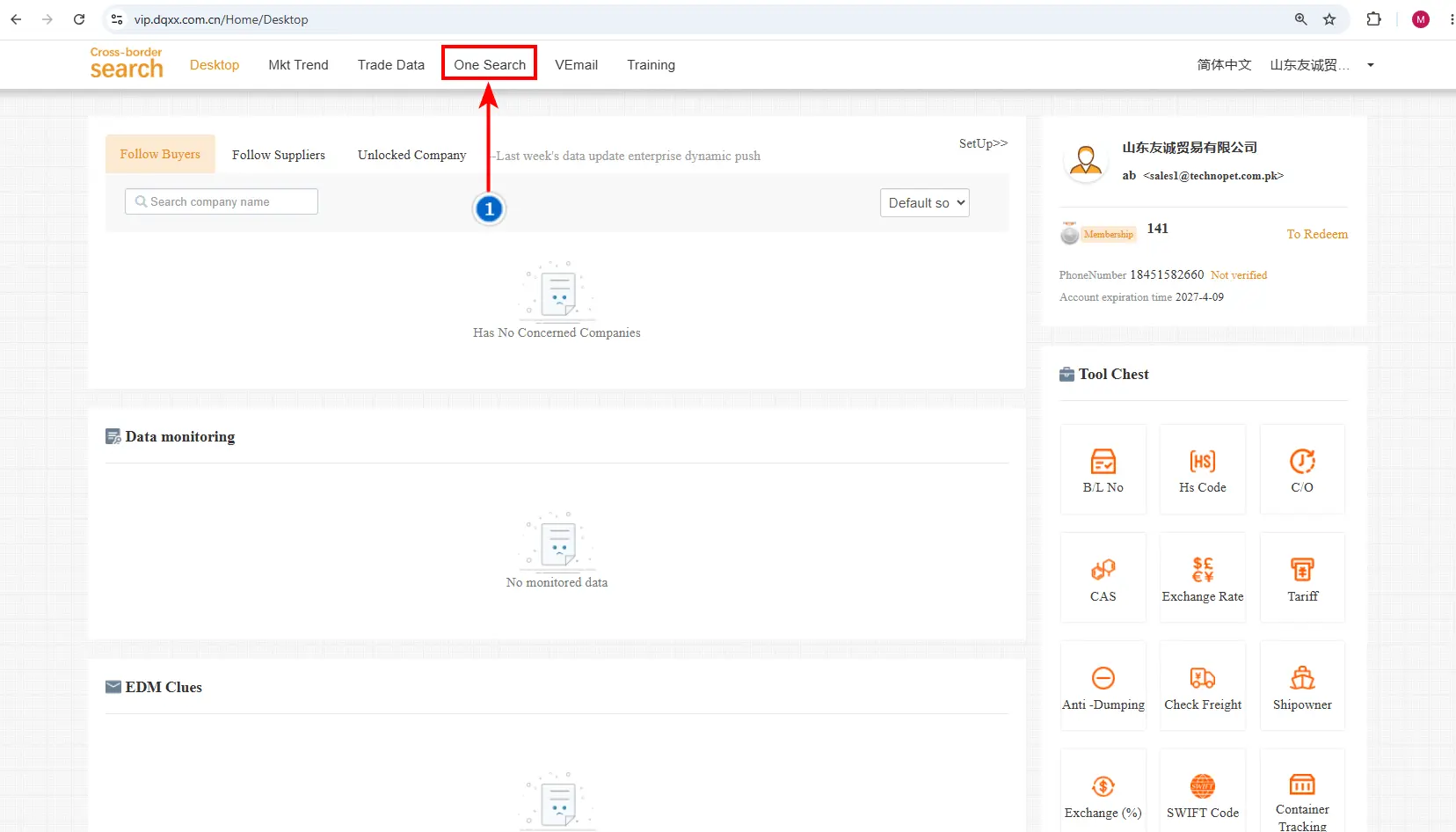
Image 1: Go to One Search Page
01
One Search Tab
Open the CBS Home Screen and click the One Search tab in the header to start your product search.
STEP 02
One Search Explain
Set Your Search Filters
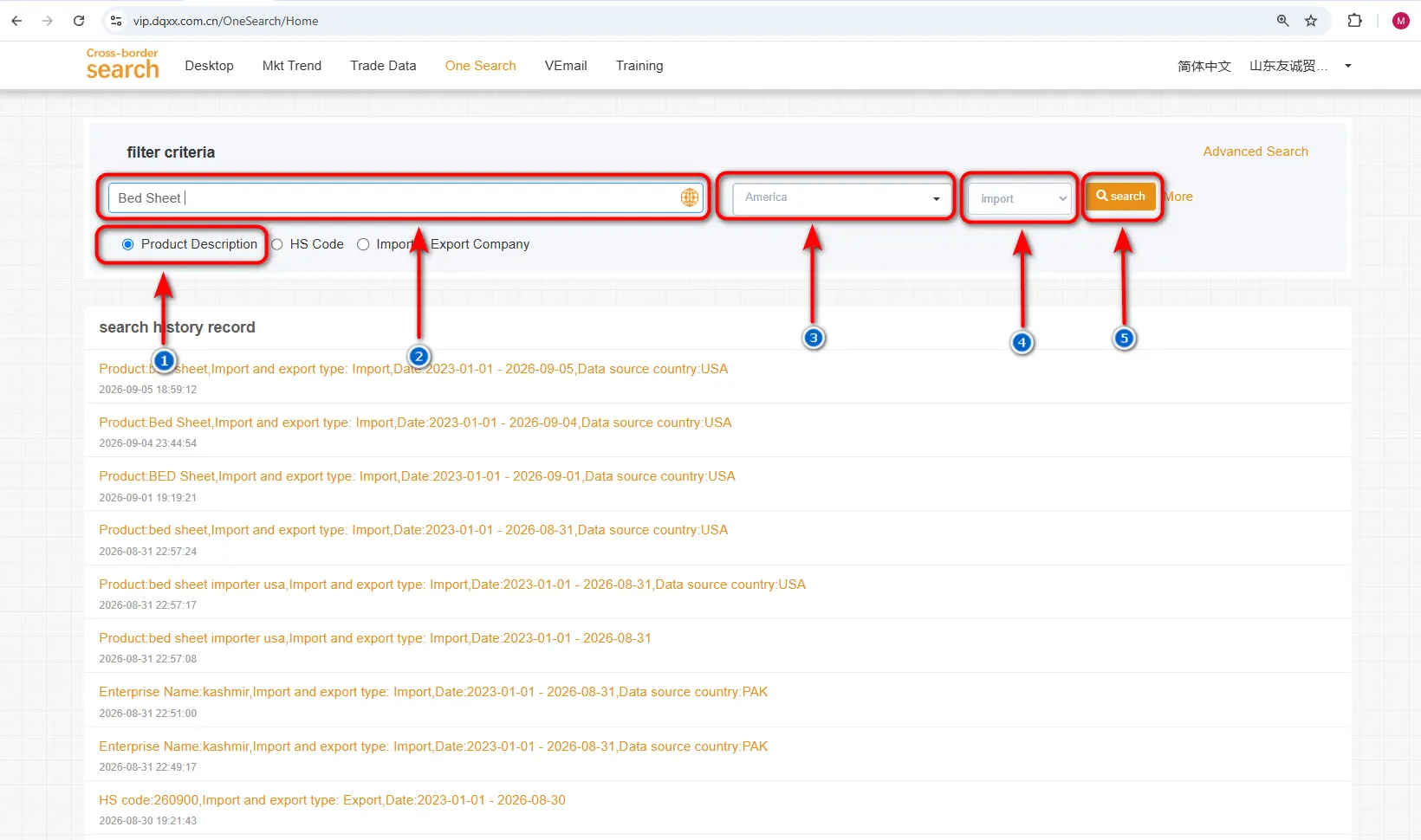
Image 2: One Search Tab Explain
01
Product Search
Select the Product Search option to search by product name or description.
02
Enter Product Name
Type the product you want to search for, for example Bedsheets.
03
Select Country
Choose the country you want data for. In this example, USA is selected.
04
Select Country
Choose the country you want data for. In this example, USA is selected.
05
Search
Click the Search button to retrieve the data.
STEP 03
Product Search Tabs
Understand the Result Page
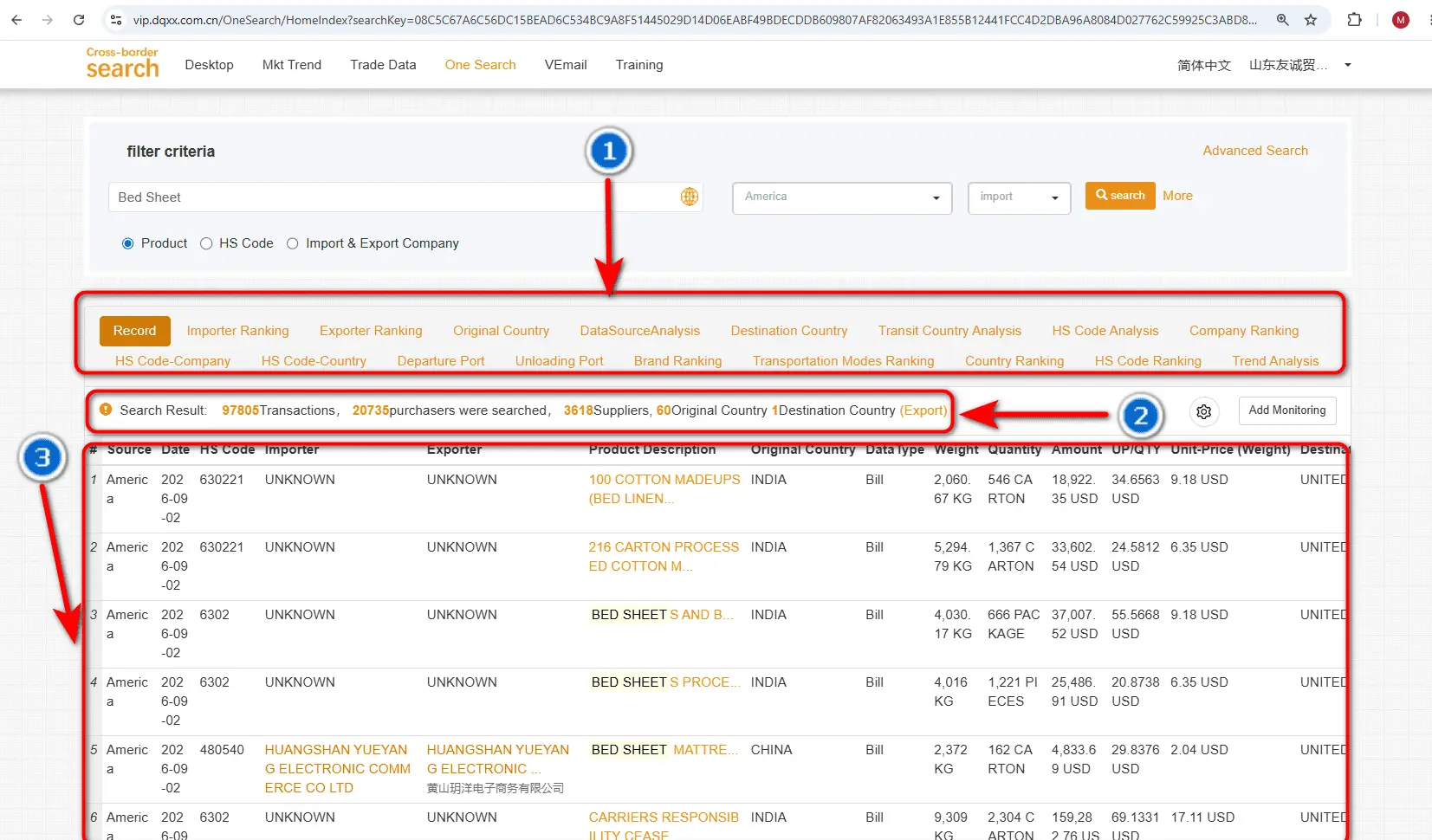
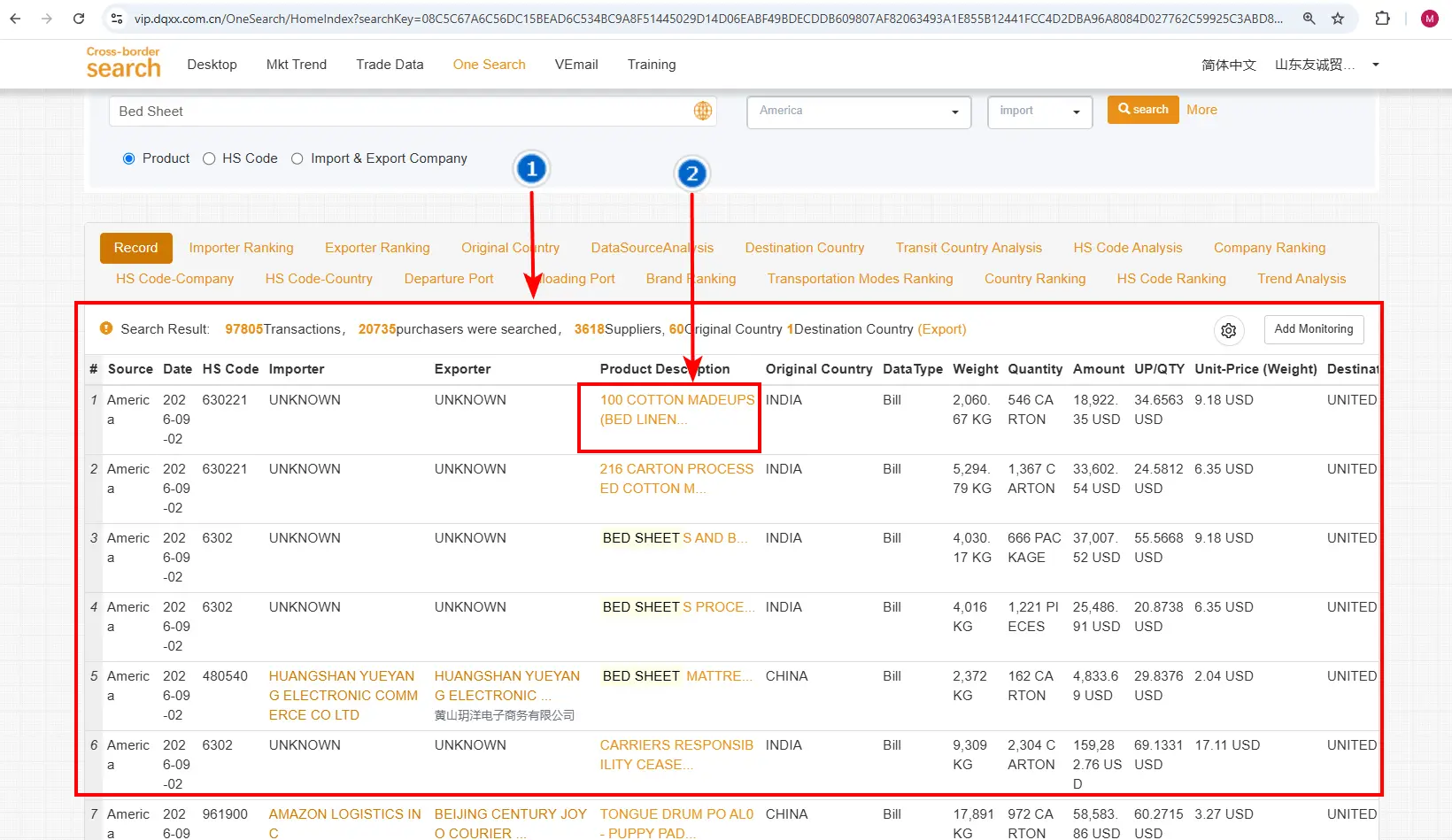
Image 3: Product Search Results
01
Data Tabs
Use the tabs to find importer countries, exporter countries, suppliers, and other product related information.
02
Search Results Summary
See total transactions, number of purchasers and suppliers, origin country, and destination country.
03
Shipment Data
View recent shipment data line by line, including the quantity and value in USD imported by the selected country.
STEP 04
Data Hunting
Explore All Related Data Tabs
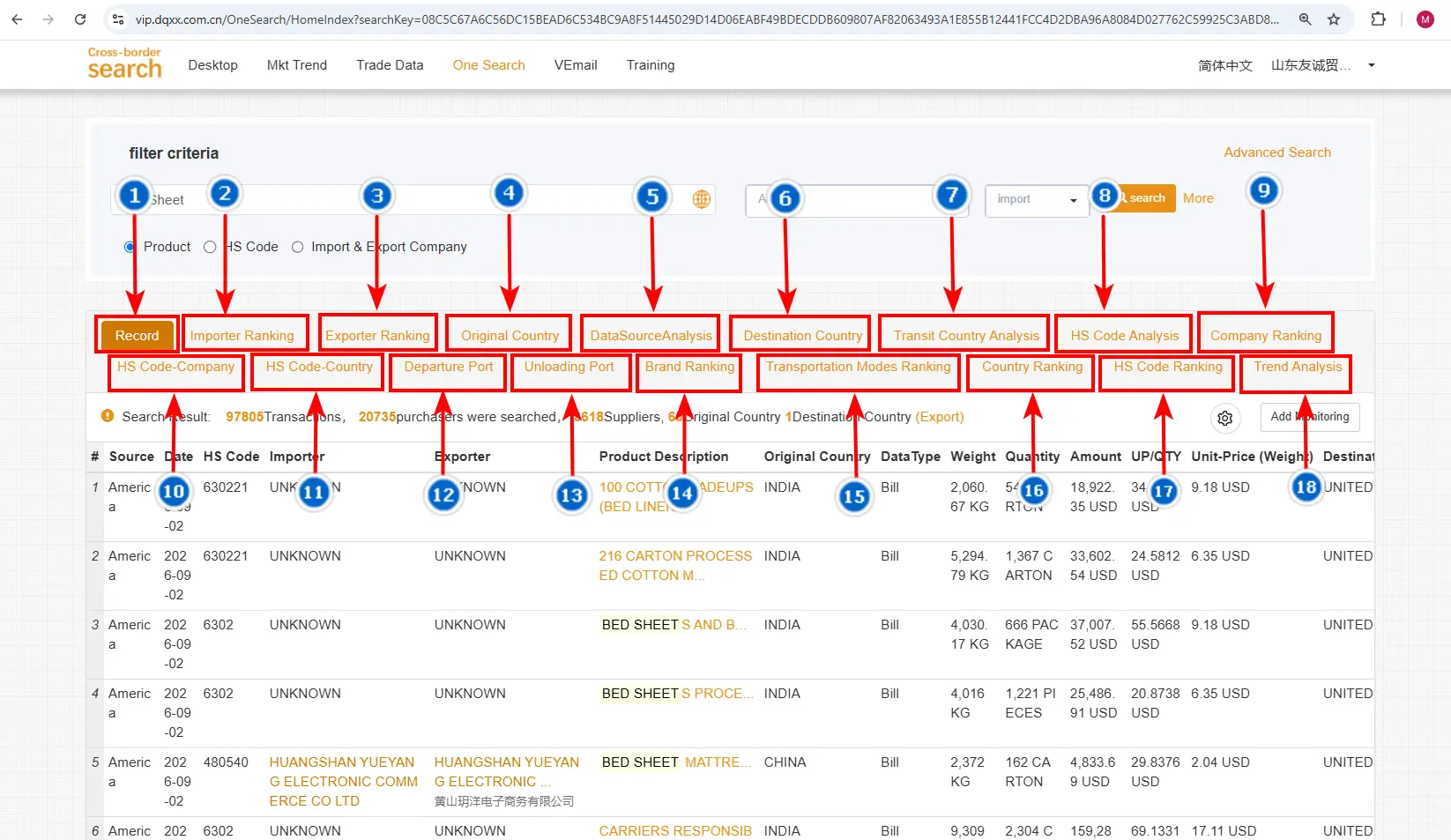
Image 4: Data Hunting Tabs Explained
01
Record Page
View all recent shipment records for the searched product.
02
Importer Ranking
See all companies that import the product you searched for.
03
Exporter Ranking
See the names of companies that export the product.
04
Origin Countries
View the countries, line by line, that export the product.
05
Data Source Analysis
Check the selected country’s data and how much it is exporting. For example, USA.
06
Destination Country
View the data related to the selected destination country, such as the USA.
07
Transit Country Data
See the countries through which the product is routed before reaching its final destination.
08
HS Code Analysis
View data for all products related to the selected product based on HS codes.
09
Company Ranking
See quantity, supplier details, related companies, buyer companies, and their contacts.
10
HS Code Companies
View details of all companies associated with the selected HS code.
11
HS Code Countries
View countries importing and exporting the product by HS code.
12
Departure Port
See all ports from which the product was departed or shipped.
13
Unloading Port
See all ports where the product was unloaded in the destination country.
14
Brand Ranking
View the top brands related to the searched product.
15
Transportation Modes Ranking
Compare transport methods ranked by number of shipments or volume of goods.
16
Country Ranking
View supplier and destination countries, and which companies are buying and selling.
17
HS Code Ranking
Same as country ranking, but data is shown by HS codes instead of product names.
18
Trend Analysis
View year by year graph data to analyze the product’s trend over time.
STEP 05
Record Checking
Check Shipment Details
Image 5: Record Page Overview
01
Recent Shipment Data
On the Record page, see how much of the product was imported, along with quantity, weight, amount, and other shipment details.
02
Product Description
Click the Product Description to open the detailed page with complete shipment information.