Learn how to search the export data of a company, find its buyers and destination countries, review shipment records, and explore detailed trade intelligence using CBS Trade Data.
STEP 01
Open CBS TRADE DATA Dashboard
Go to One Search
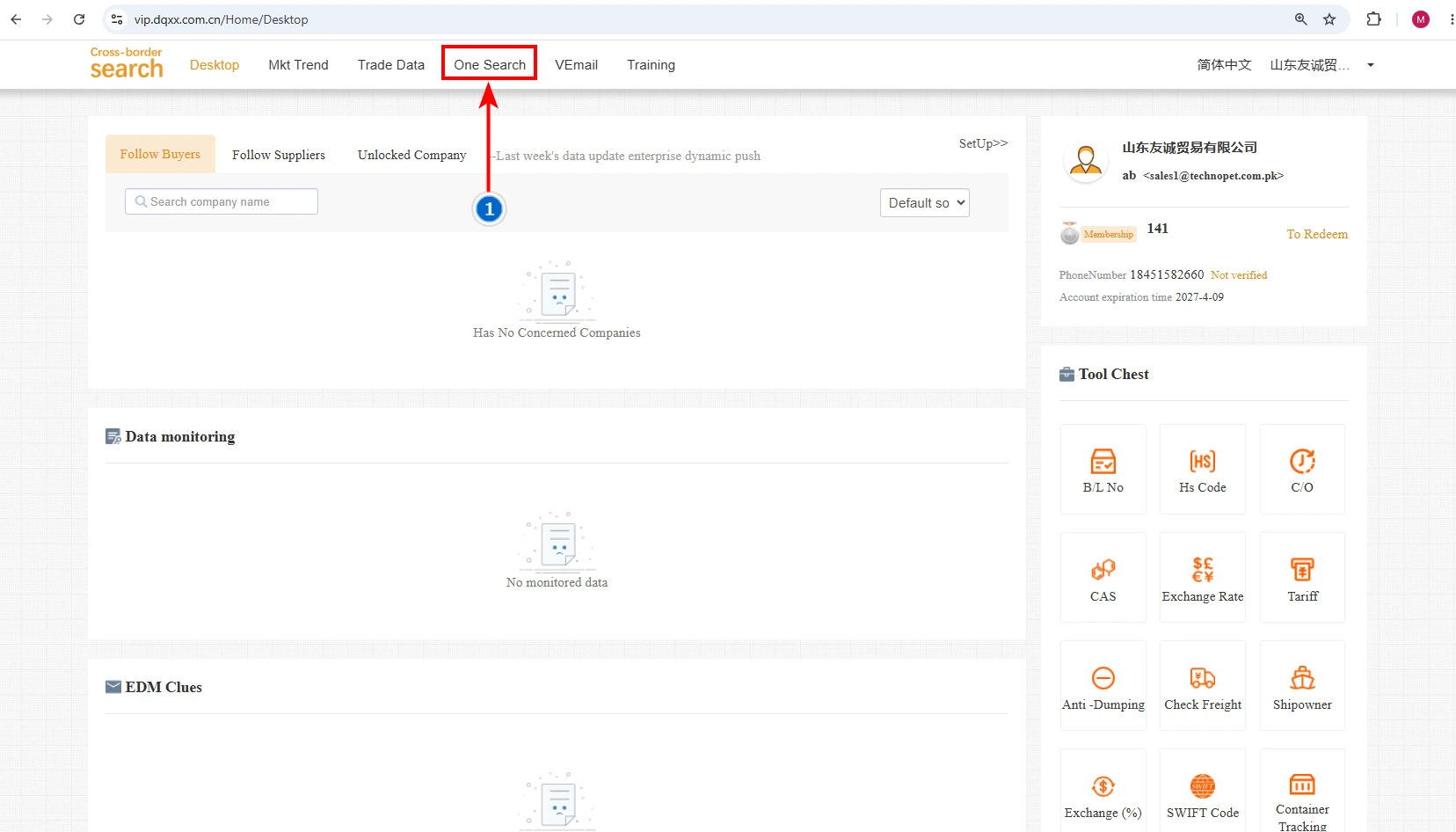
Image 1: CBS Home Screen with One Search Tab
01
Open One Search
To get the export data of a selected company, go to the Desktop Page and click the One Search tab. The process is the same as searching for import data.
STEP 02
One Search Explained
Set Up Your Company Search
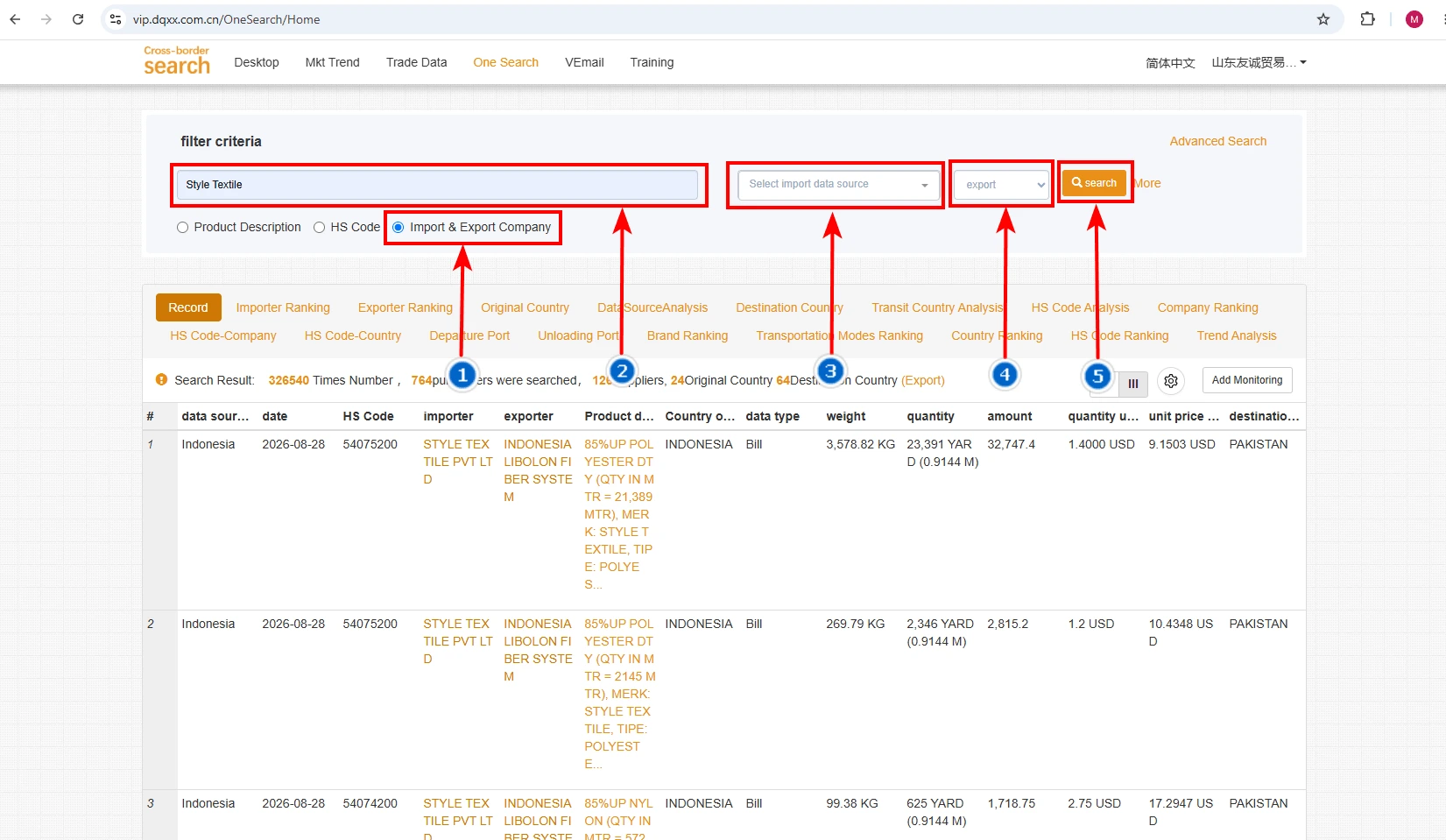
Image 2: One Search Filter for Company Export Data
01
Import & Export Company
Select the Import & Export Company option.
02
Enter Company Name
Enter the exact company name, for example Style Textile, to find the companies it sells or exports products to.
03
Select Country
Select the country where the company is located and from which it exports its goods.
04
Select Export
Choose the Export option to view the company’s export data.
05
Click Search
Click the Search button to view the export data.
STEP 03
Related Export Data of the Company
Explore All Related Data Tabs
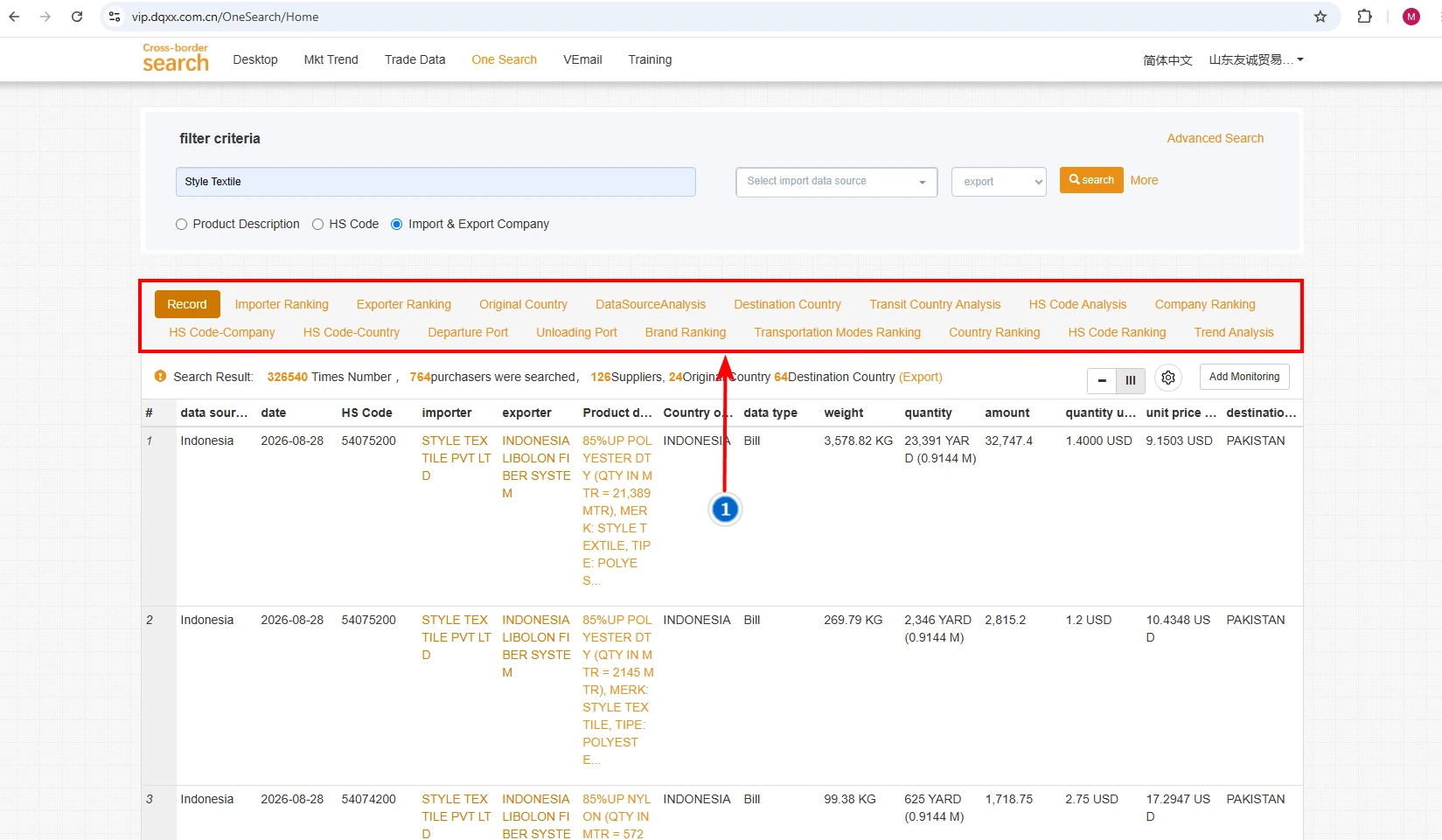
Image 3: Export Data Tabs
01
Record Page
View all recent shipment records exported by the company to buyers around the world.
02
Importer Ranking
See all companies that have imported products from the selected company, along with their import data.
03
Exporter Ranking
View the selected company along with its competitors and their export rankings.
04
Origin Countries
See the countries from which the company exports its goods. Since the company is based in Pakistan, Pakistan mainly appears here.
05
Data Source Analysis
View the company’s export data based on the available data sources.
06
Destination Country
See all the countries to which the company exports or sells its products.
07
Transit Country Data
See the countries through which the company’s goods pass before reaching their final destination.
08
HS Code Analysis
View the products exported by the company according to their HS codes.
09
Company Ranking
See the companies involved in the export transactions, including buyers and related companies.
10
HS Code Companies
View companies associated with the exported products based on HS codes.
11
HS Code Countries
View countries importing or exporting the company’s products based on HS codes.
12
Departure Port
See the ports from which the company’s goods are shipped.
13
Unloading Port
See the ports where the exported goods are unloaded.
14
Brand Ranking
View the top brands associated with the products exported by the company.
15
Transportation Modes Ranking
See the different transportation methods used to export the company’s goods.
16
Country Ranking
View the countries the company exports to and the companies receiving the goods.
17
HS Code Ranking
View countries and companies involved in the exports, organized by HS code.
18
Trend Analysis
View the company’s export data in a year-wise graph to analyze export trends over time.
STEP 04
Record Page
Check Recent Shipment Details
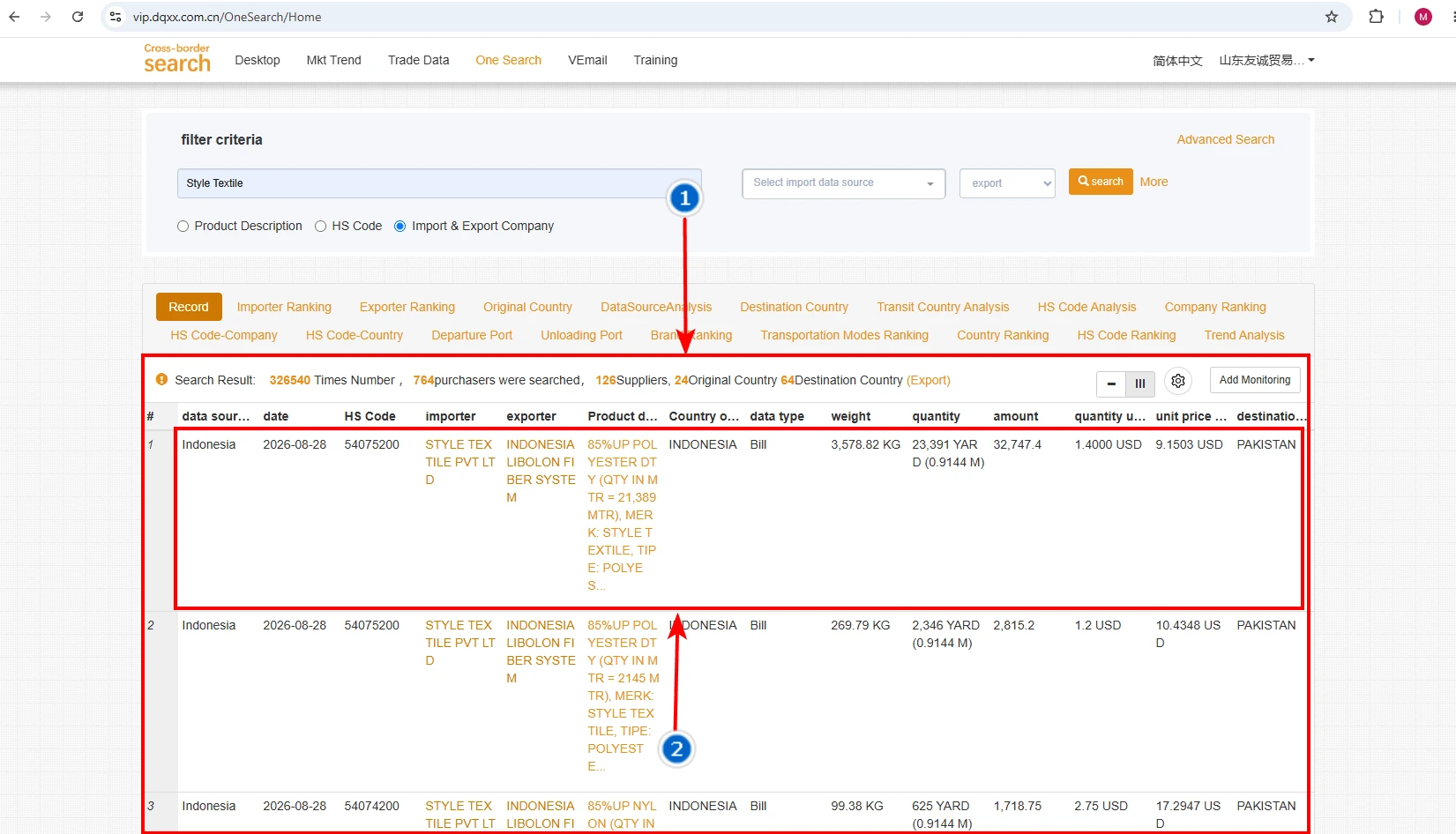
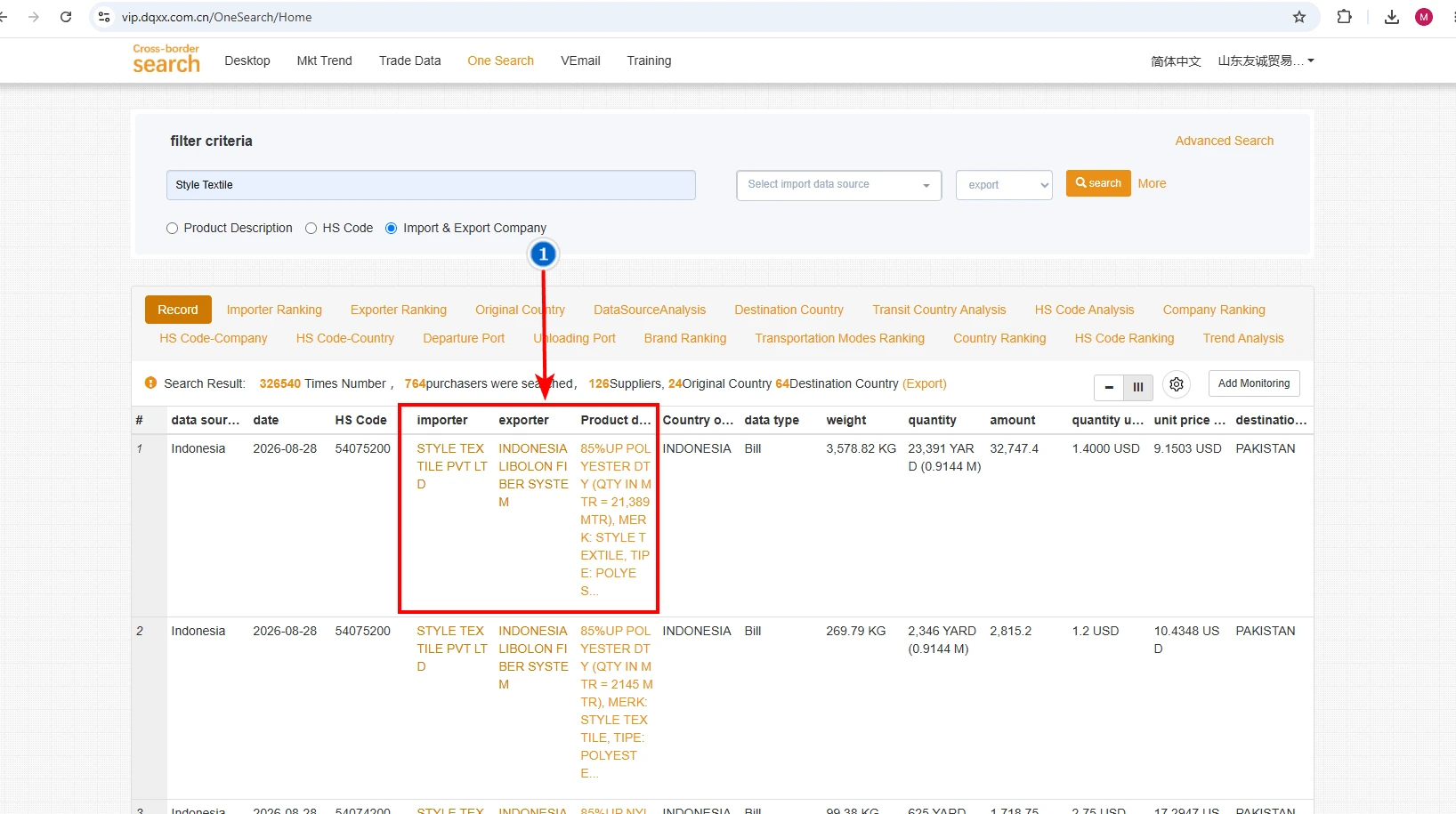
Image 4: Record Page Overview
01
Source Country & Recent Shipments
See the Source Country where the selected company is based, and view recent shipment data showing the companies it has exported to.
02
Shipment Record Details
In the selected record, the exporter Style Textile exported its products to Indonesia Libolon Fiber System. You can also see the product description, quantity, weight, value/amount, origin country, and other shipment details.
STEP 04
Further Details
Open Detailed Information
Image 5: Exporter, Importer and Product Links
01
Exporter Company
Click the Style Textile link in the shipment record to view the full details of the exporter company.
02
Importer Company
Click the Importer Company link to see the complete details of the company that purchased products from Style Textile.
03
Product Description
Click the Product Description link to see complete information about the product exported to that company.